Step 1
Make sure your hearing aids are paired with your phone. This was set up at your first appointment, but it could have come unpaired.
How to connect your Fortell AI Hearing Aids to your iPhone
Step 2
Make sure Bluetooth is working properly.
Learn how to connect via Bluetooth
Step 3
If Bluetooth is working properly, make sure that your hearing aids are charged.
Learn how to charge your hearing aids
Step 4
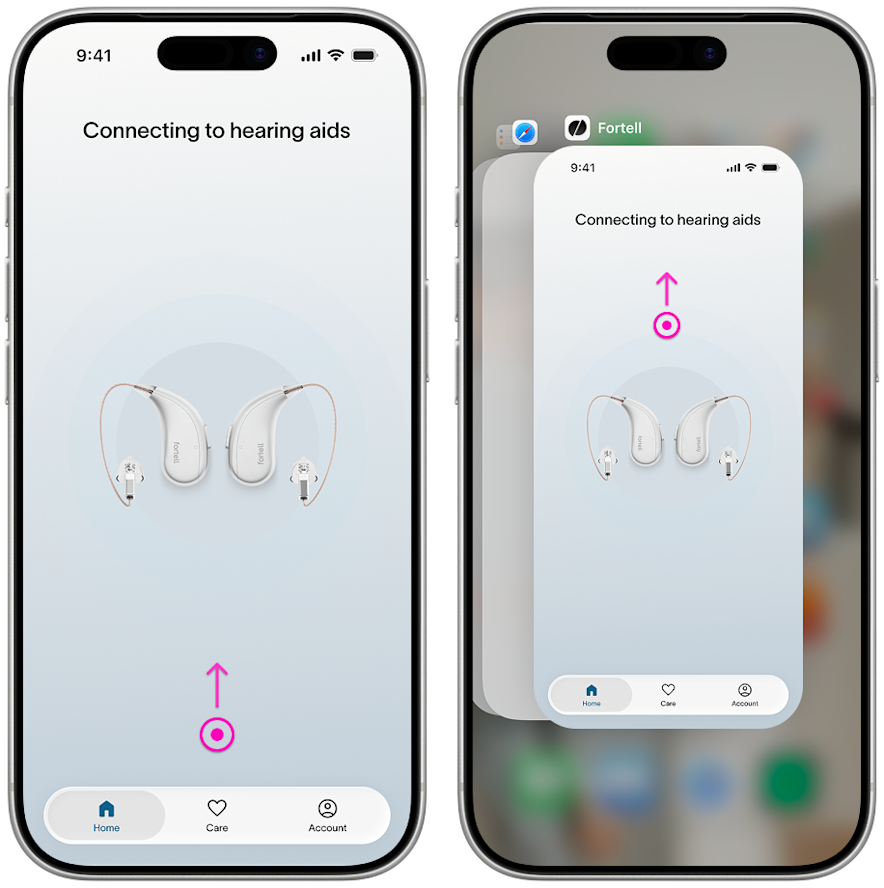
If the hearing aids are charged, try restarting your Fortell companion app. Open the Fortell app, then swipe up from the bottom of the screen and pause in the middle of the screen. Now swipe up on the app’s preview to close the app.
Step 5
Reopen your Fortell companion app. If your hearing aids still won’t connect, you may need to reset them.
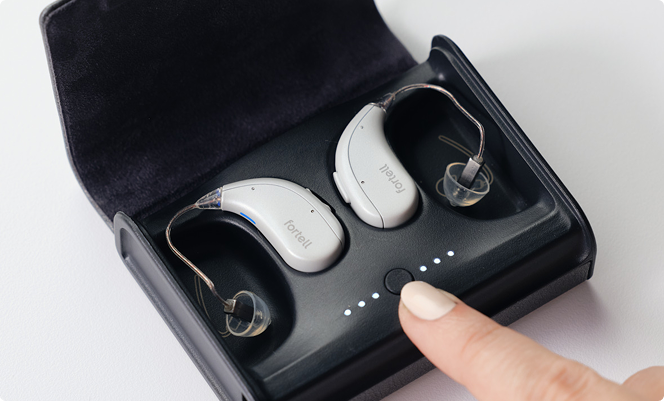
To reset, dock your hearing aids in the case. You will see the case lights turn on for each hearing aid. Press and hold the button on the case for 5 seconds until the white lights start alternating. Have your phone close to the hearing aids with the Fortell app open. This may take about a minute.
Step 6
If resetting from the case did not resolve your issue, then try resetting the hearing aids themselves.
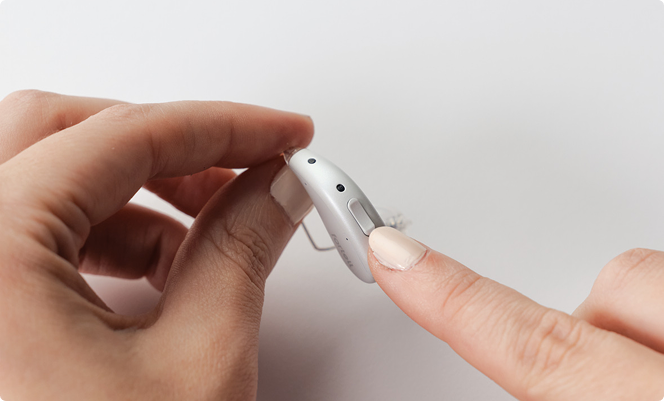
On your Left hearing aid, press and hold the Lower button for 15 seconds.
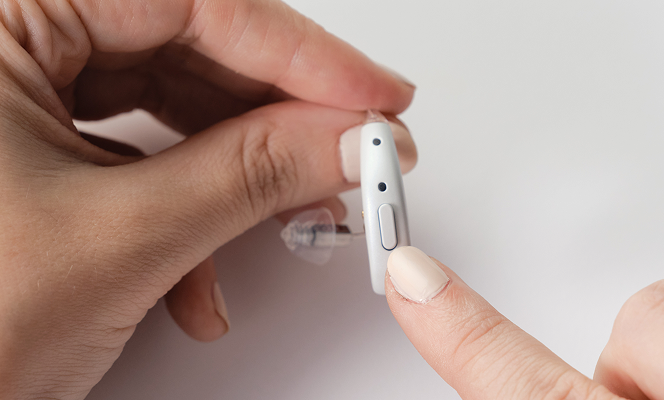
Repeat on your Right hearing aid – press and hold the button for 15 seconds. After about a minute, you should hear the hearing aids turn back on. You can do this with them on or off your ear.
Step 7
If resetting the hearing aids doesn't resolve the issue, you may need to restart your phone. To restart your phone, press and hold either volume button and the side button until the power-off slider appears. Drag the slider, then wait 30 seconds for your device to turn off. To turn your device back on, press and hold the side button (on the right side of your iPhone) until you see the Apple logo.
Step 8
If none of these steps work, we’re happy to help! Send us a message or call us at (917) 410-5407.