The GN Multi-Mic+ is a wearable or tabletop microphone that streams directly to your hearing aids. It can be used in four modes: Microphone, Telecoil, Line-in (headphone jack) and FM (audio system).
This article focuses on connecting for microphone use via Auracast™. To learn more about connecting via the other modes, see this article.
Step 1
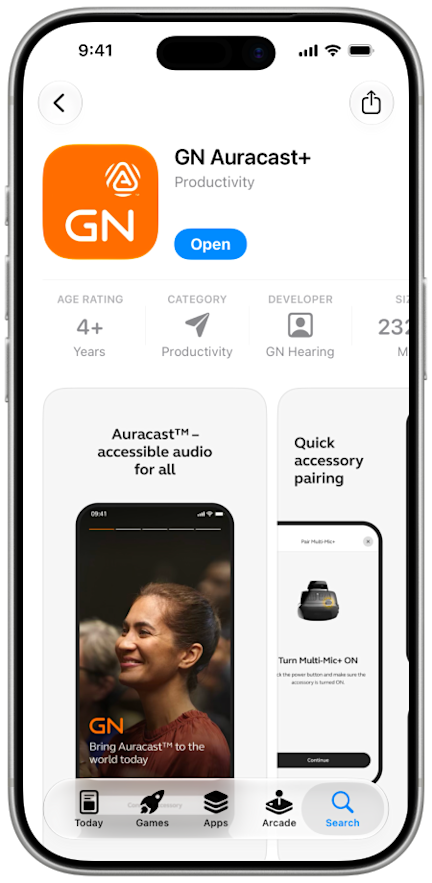
Download and open the GN Auracast+ app from the App Store.
Step 2
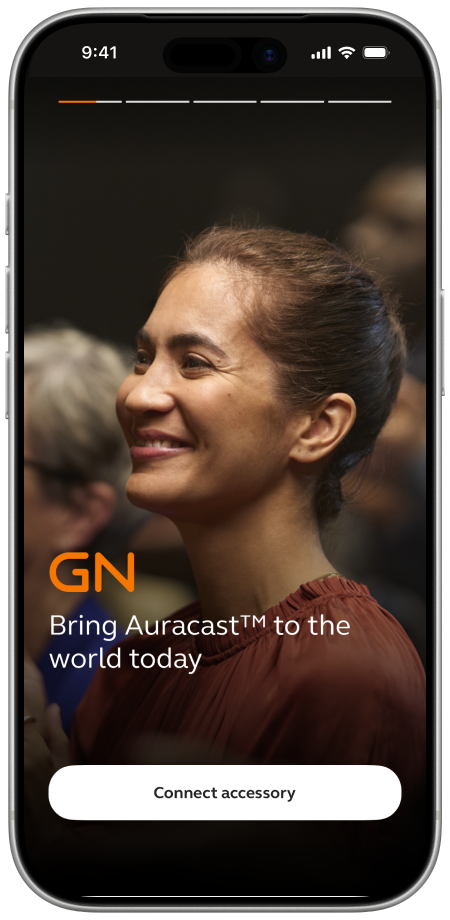
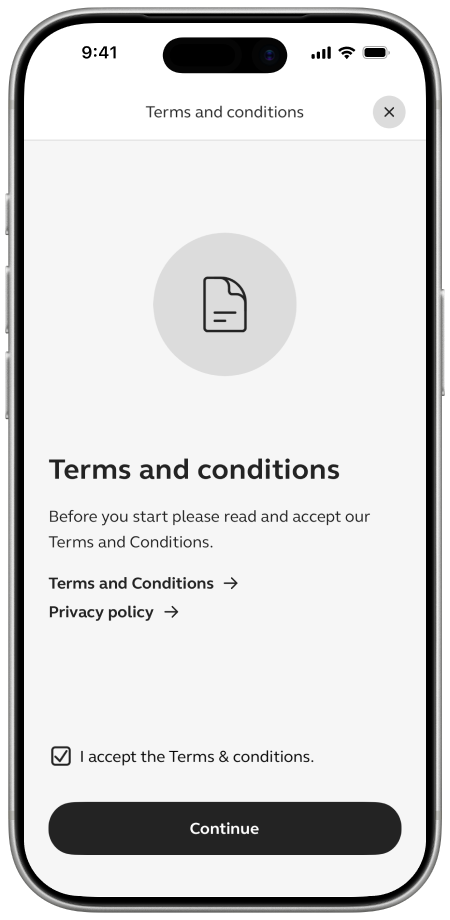
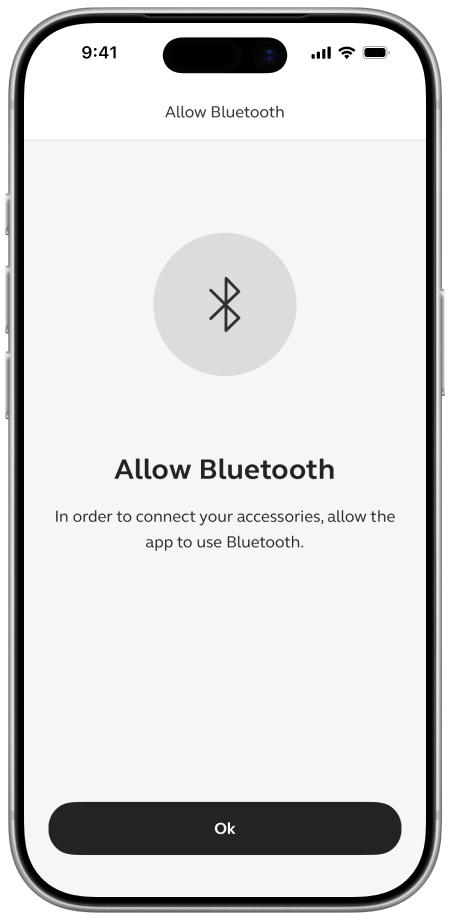
Follow directions in the app to connect an accessory, accept Terms & conditions, and Allow Bluetooth access.
Step 3
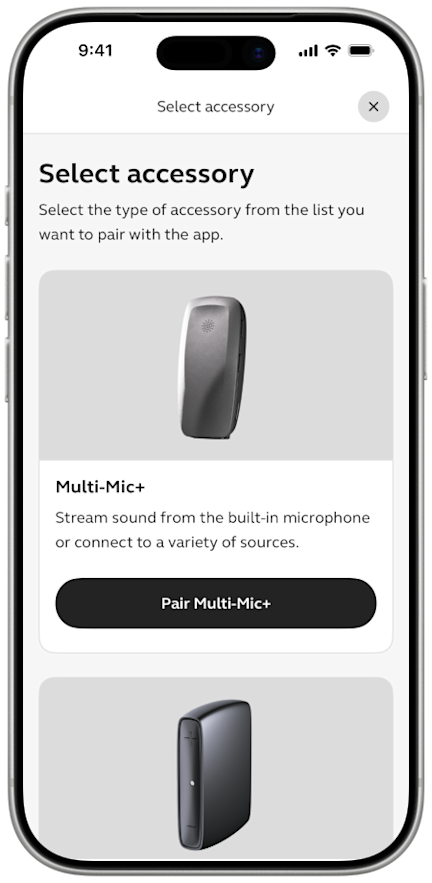
From the list of accessories, select Pair Multi-Mic+. It should be the first on the list.
Step 4
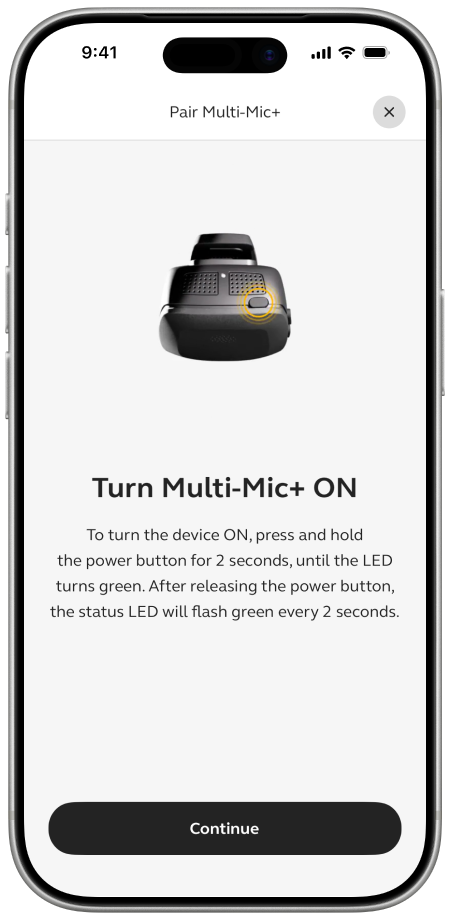
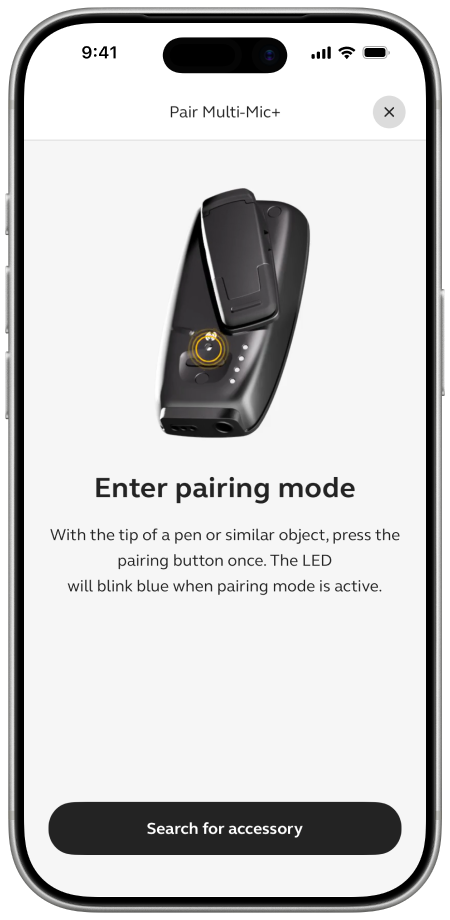
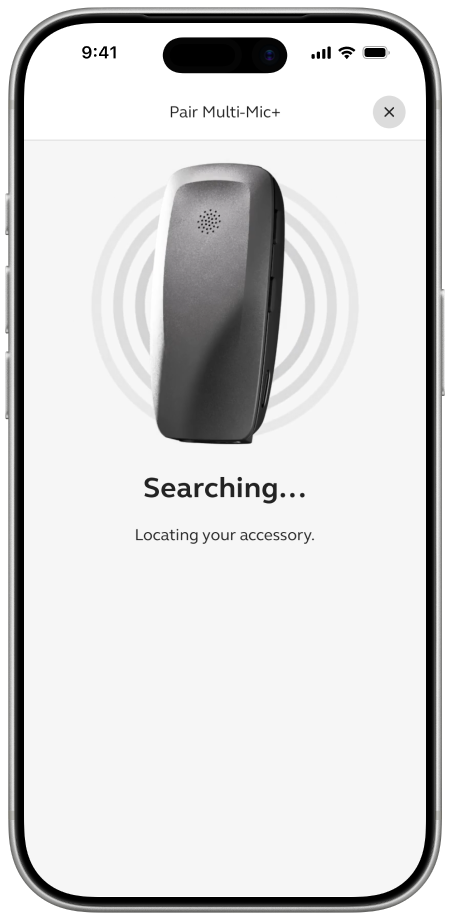
Follow the directions on screen to turn the Multi-Mic+ on and enter pairing mode. Tap Search for accessory to allow the app to search for your device.
Step 5
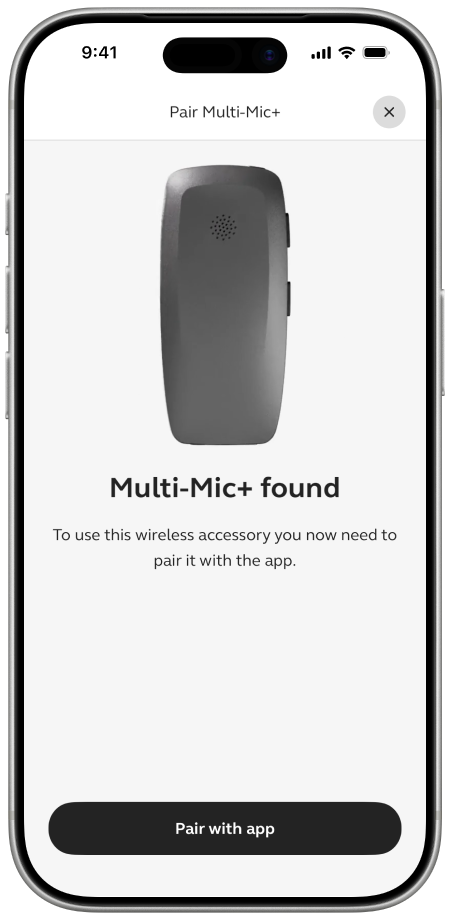
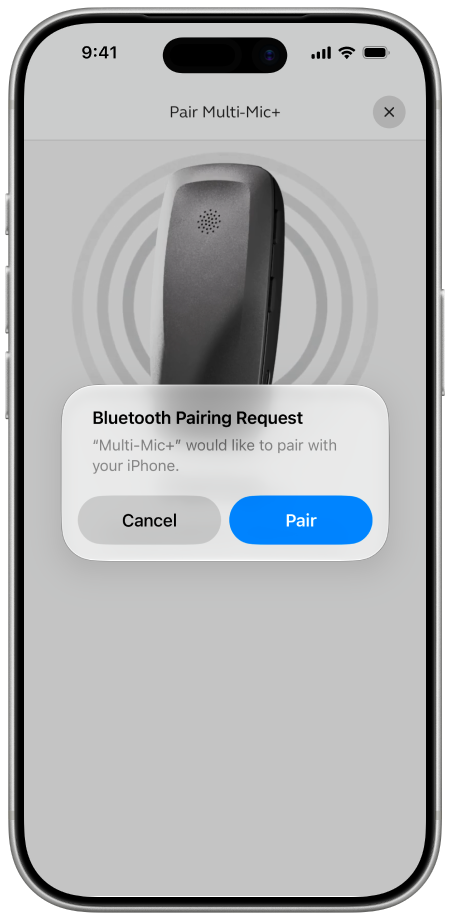
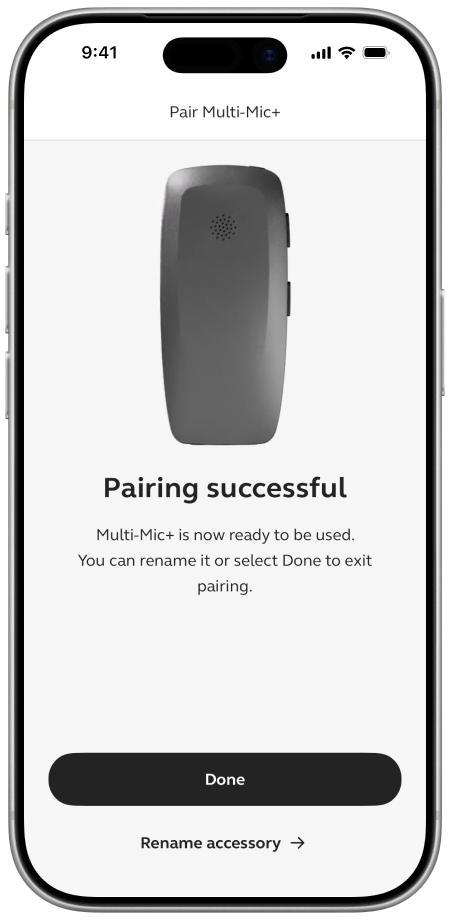
You should now be connected. Tap Pair with App, Pair and Done.
Step 6
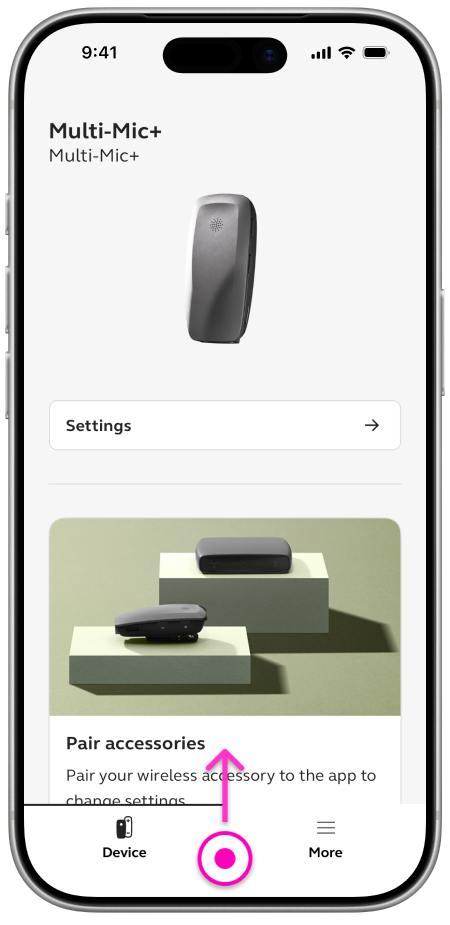
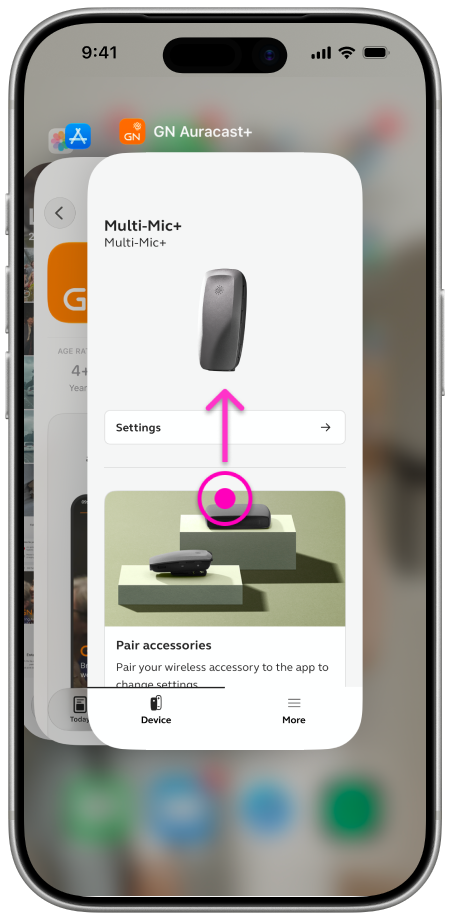
Exit the app — swipe up from the bottom of the screen and pause in the middle of the screen. Now swipe up on the app’s preview to close the app.
Step 7
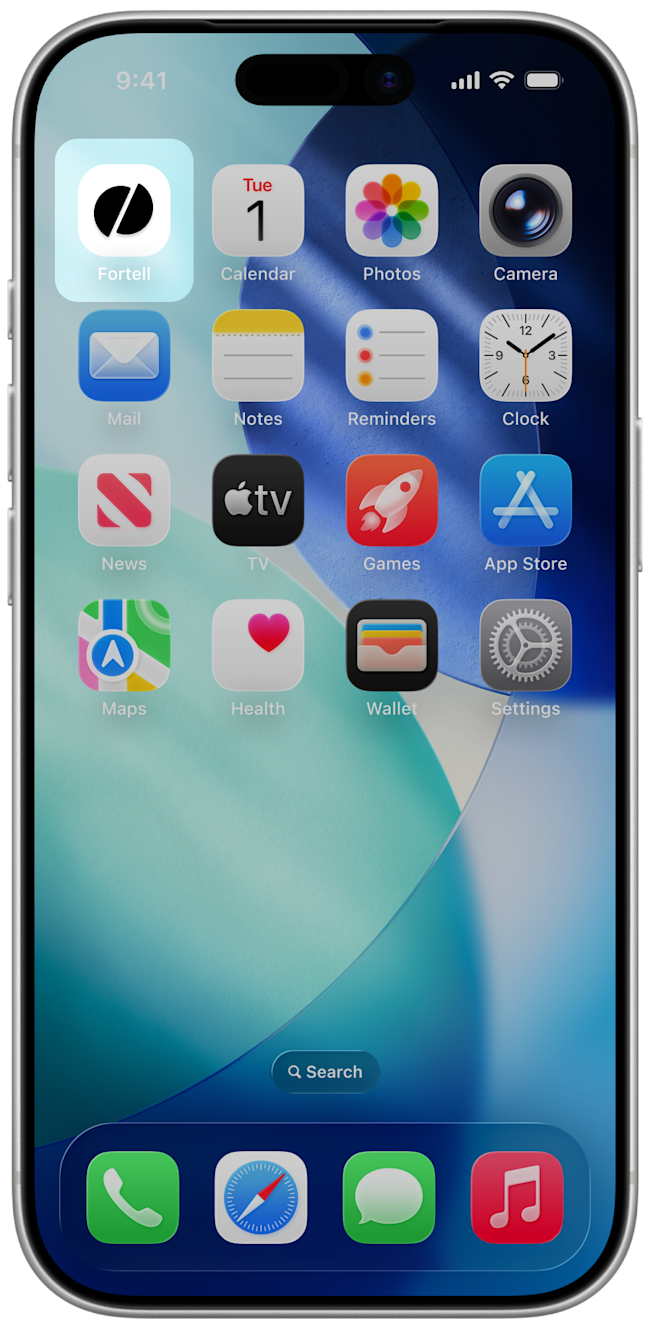
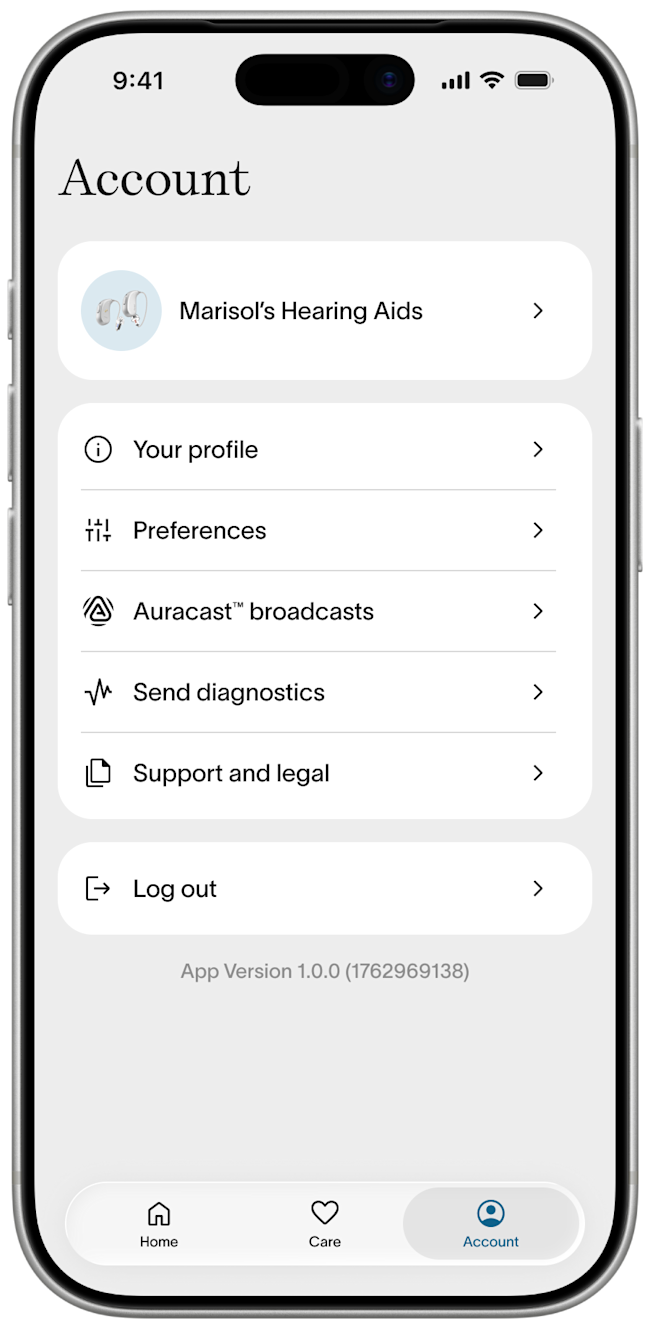
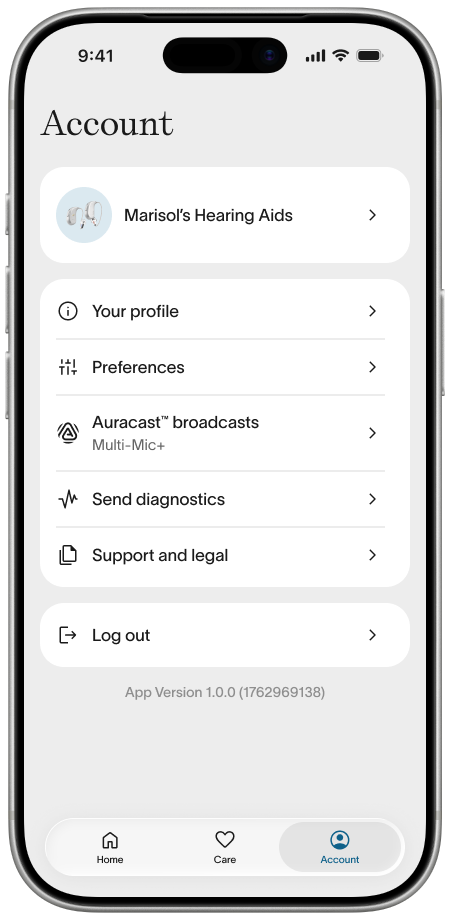
Open your Fortell companion app. Go to Account > Auracast™ broadcasts.
Step 8
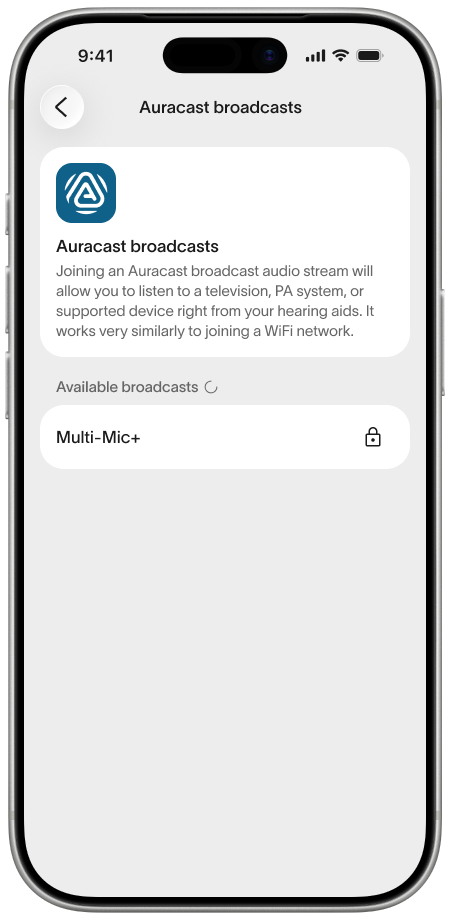
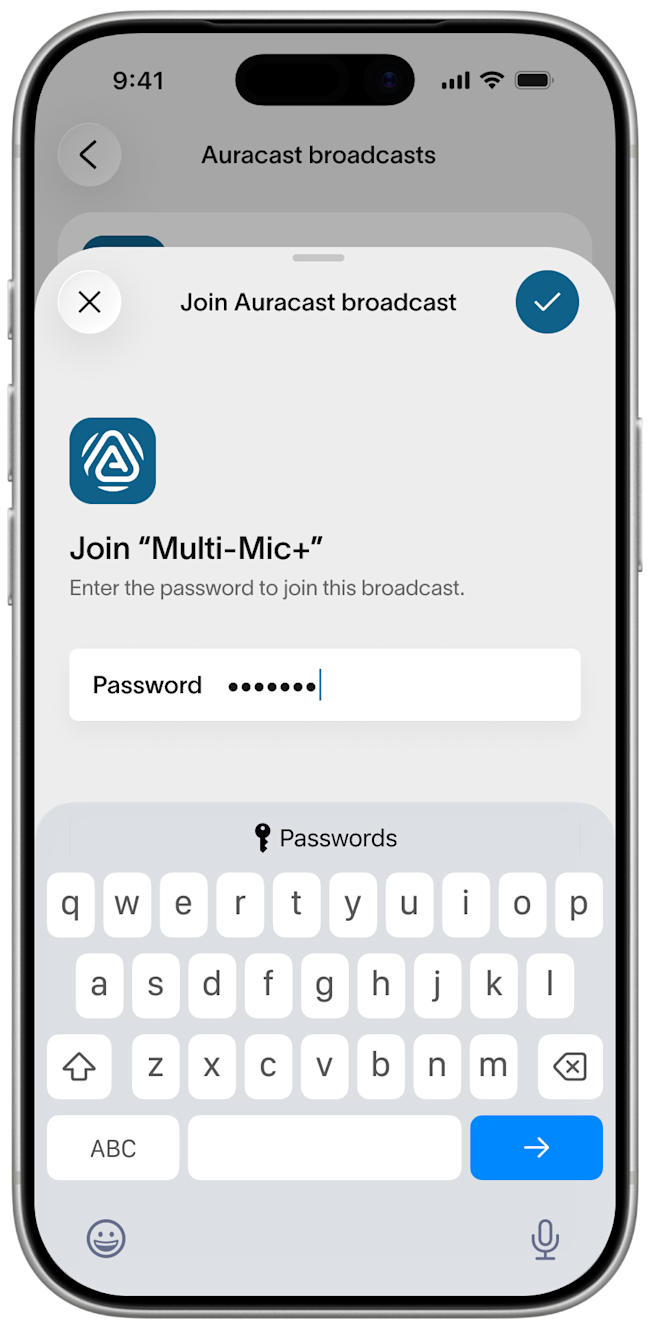
From the list of available broadcasts, select Multi-Mic+. If you set up a password from the GN Auracast+ app, enter it now.
Step 9
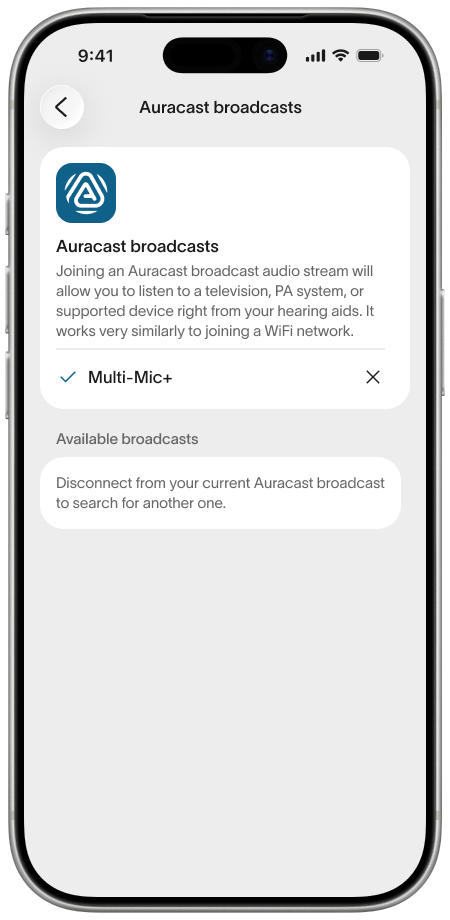
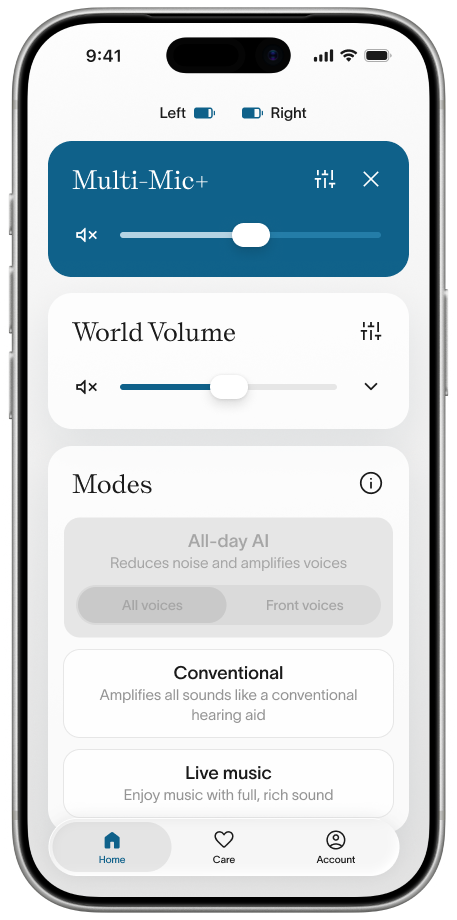
You should now be connected to your Auracast™ broadcast. Press the back button then Home to see the stream and adjust volume.
Step 10
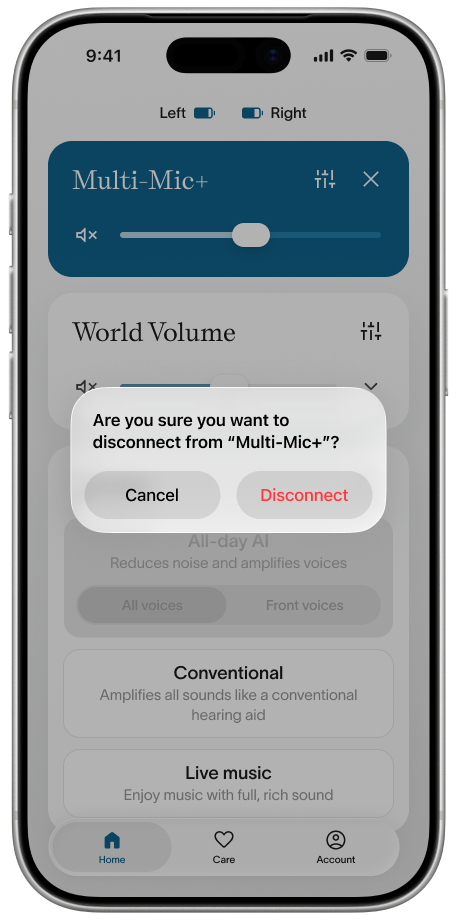
Whenever you are ready, you can hit the X to disconnect from the broadcast.
Step 11
If none of these steps work, we’re happy to help! Send us a message or call us at (917) 410-5407.